A Beginner's Glossary to Pull Requests
Fork, clone, branch, diff, CI, merge — the vocabulary and the actual sequence of events, in the order you'll hit them if you've never sent a PR to a project you don't own.
Every open source guide assumes you already know what a fork is. This one doesn't. If you can write code but have never sent a pull request to a project you don't own, this is the vocabulary and the actual sequence of events, in the order you'll hit them.
The nouns
Repository (repo)
A project's codebase plus its full history, tracked by Git. github.com/owner/project is a repo.
Fork
Your own copy of someone else's repo, living under your account: github.com/you/project. You can't push directly to a repo you don't own, so a fork is where your changes actually live until a maintainer decides to pull them in. GitHub's "Fork" button creates this in one click.
Clone
Downloading a repo (yours or anyone's) onto your machine, with its full history: git clone https://github.com/you/project.git. A fork is a copy on GitHub's servers; a clone is a copy on your disk.
Remote
A name Git gives to a repo URL it knows about. After cloning your fork, Git calls that URL origin by convention. If you also want to pull in changes from the original project, you add it as a second remote, usually named upstream:
git remote add upstream https://github.com/original-owner/project.gitBranch
A named line of development. Every repo has a default branch (usually main). You never work directly on it — you make a new branch for your change:
git checkout -b fix/short-descriptionThis isolates your work so the default branch stays clean, and so you can have several unrelated changes in flight without them interfering.
Commit
A saved snapshot of changes, with a message describing what and why. Not every edit needs a commit — you commit when a coherent chunk of work is done:
git add path/to/file.py
git commit -m "fix: handle empty input in parse_config"
Diff
The line-by-line difference between two versions of a file — what a commit actually changed. git diff shows it before you commit; every PR displays it automatically.
Issue
A tracked problem or request, living in the repo's Issues tab. Not code — a description. "Clicking this button crashes the app" is an issue. The fix for it is a pull request.
Pull request (PR)
A request for the maintainers to pull your branch's commits into theirs. It bundles your diff, a description, and a place for discussion, review comments, and CI results, all in one page.
The sequence
Concretely, in order:
- Fork the repo to your account.
- Clone your fork locally.
- Add the original repo as
upstream, so you can pull in others' changes later. - Create a branch for your fix.
- Make the change, run the project's tests, commit.
- Push the branch to your fork:
git push origin fix/short-description. - Open a pull request on GitHub: your fork's branch → the original repo's default branch.
- CI runs automatically.
- A maintainer reviews.
- You address feedback with more commits, pushed to the same branch — they show up on the same PR automatically.
- A maintainer merges it.
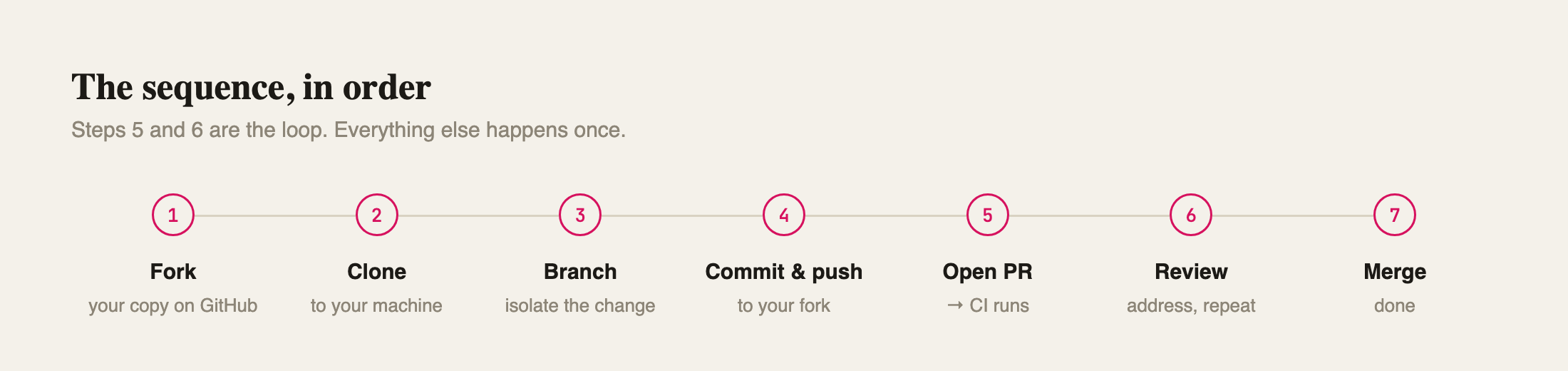
Steps 9 and 10 can repeat several times. That loop, not the initial push, is most of what a PR actually is.
What happens after you open it
CI (Continuous Integration)
Automated checks that run against your exact commit: does it compile, do the tests pass, is it formatted correctly. Every check shows as a green check, a red X, or a yellow dot (still running) next to your PR. A red X does not necessarily mean your code is wrong — sometimes it means a formatter wants different whitespace, or a required file (like a changelog entry) is missing.
Review states
When a maintainer looks at your PR, they leave one of three verdicts:
- Approved — ready to merge, as far as they're concerned.
- Changes requested — something needs to change before it can merge. This is normal, not a rejection. Pushing new commits to the same branch updates the PR; it does not clear this status automatically, though — the reviewer has to come back and re-approve.
- Commented — feedback with no formal verdict either way.
Nits, blocking, and LGTM
In review comments: a nit is a minor, optional suggestion — you can take it or leave it. Something called out as blocking has to be addressed before merge. LGTM ("looks good to me") is shorthand for approval, often left as a comment even when the formal review button isn't used.
Mergeable status
GitHub tracks whether your branch can currently be combined into the target cleanly. You'll see:
- Clean — no conflicts, ready to merge as soon as review/CI allow it.
- Conflicting — someone else's merged change touches the same lines yours does. Git can't guess which version is correct, so it stops and asks you.
- Blocked — mergeable in principle, but something else (a required review, a required check) is holding it back.
Merge conflicts, and what to do about them
A conflict means two changes touched overlapping lines since your branch diverged from the target. The fix is to bring the target's current state into your branch and resolve the overlap by hand:
git fetch upstream main
git merge upstream/main
Git will mark the exact lines in conflict with <<<<<<< / ======= / >>>>>>> markers. You edit the file to keep the correct combination, remove the markers, then:
git add path/to/file
git commit
git push origin fix/short-description
Merge vs. rebase vs. squash
Three ways a PR's commits eventually join the target branch:
- Merge commit — your commits are added as-is, plus one new commit tying them together. Full history preserved.
- Squash and merge — all your commits collapse into a single commit on the target branch. Common for small PRs, since the target's history doesn't need to see every intermediate typo-fix.
- Rebase — your commits are replayed on top of the target's current tip, one by one, with no merge commit at all. Keeps history linear.
You usually don't choose this — the repo's maintainers set a policy, and the "Merge" button on GitHub just does whichever one they've configured.
Terms specific to certain projects
Some of these you'll only meet occasionally, but they'll confuse you the first time:
- Changeset — a small file describing a change for the next release's changelog, required by some projects (via the changesets tool) alongside the code change itself.
- Draft PR — a pull request marked not-ready-for-review yet, usually to run CI early or show work-in-progress. Doesn't notify reviewers the same way a normal PR does.
- Upstream / downstream — upstream is the project you're contributing to; downstream is a project that depends on or forks from it. Direction matters: your PR flows upstream.
- Cherry-pick — taking one specific commit from one branch and applying it to another, without bringing everything else along.
- Force-push — overwriting a branch's remote history instead of adding to it, usually after a rebase. Necessary sometimes, risky if anyone else is also working on that branch.
The one habit worth having before any of this
Before you write a line of code: read the project's CONTRIBUTING.md if it has one, and look at a few recently merged PRs to see what they actually require — not what's merely documented. Projects routinely enforce conventions (a specific commit message format, a required changeset, a specific target branch) that aren't in any README, and the fastest way to find them is to look at what got merged, not what got written down.
Everything else — the vocabulary above — you'll absorb by doing it once. The one thing worth memorizing in advance is that "changes requested" is not a rejection, and neither is a red X on your first CI run. Both are just the process working.